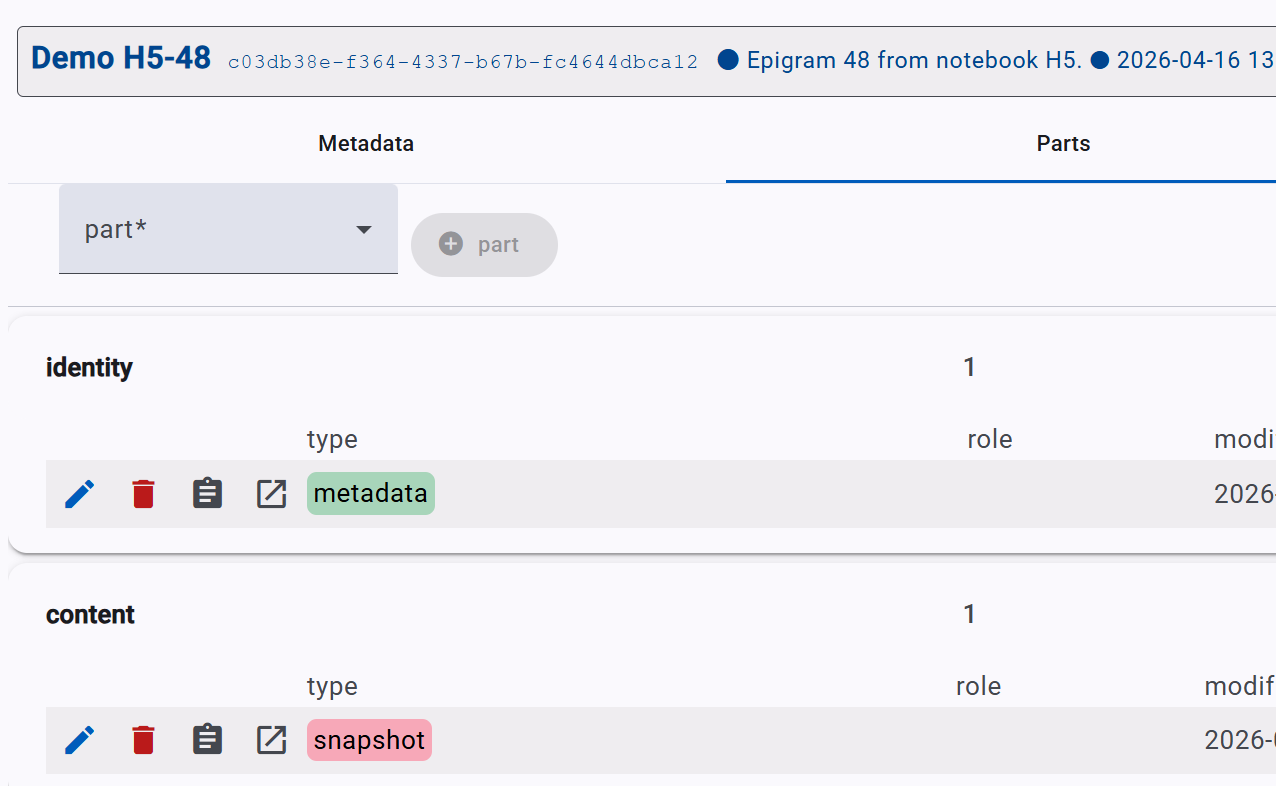
Editor - Items
The items list is the list of all the top-level entities in the database.
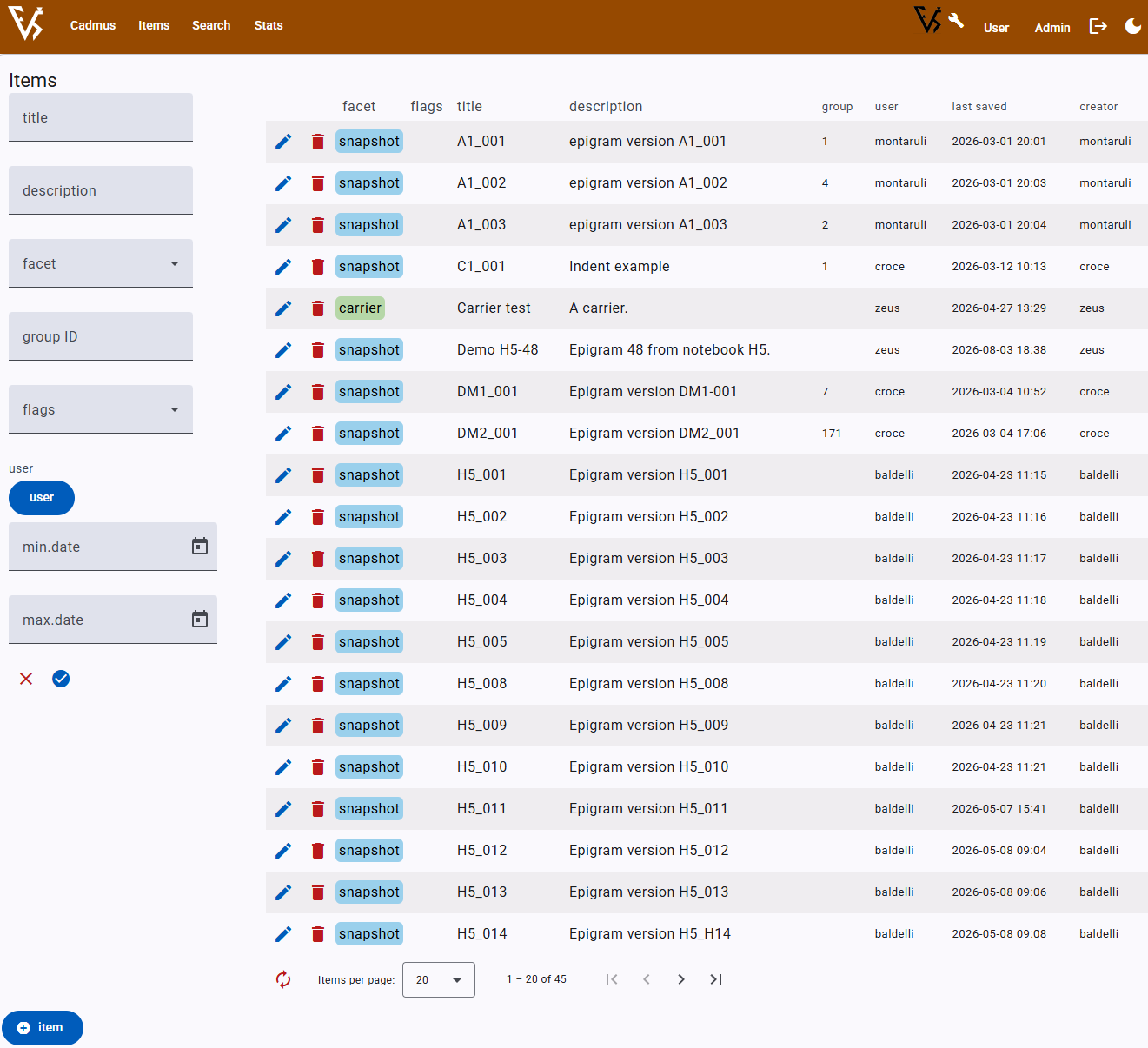
You can combine the filters shown in its left pane to variously filter the list according to multiple criteria. Most of them are self-explanatory; only some filters require explanation:
- facet: the facet is the “type” of an item. Cadmus has dynamic typing, so in the end items have an open-ended type; anyway, each item is assigned a facet, which tells which parts it can include (or it should include, when these parts are required). So if you want to list only all items of a given type, just pick a facet from the dropdown.
- group ID: items can be assigned a group ID, which is an arbitrary string virtually grouping them. The actual usage of the group ID varies according to the project. In GVE, snapshot items put in group ID the number of the epigram they belong to.
- flags: items can have flags assigned, typically used to represent editorial states or any other type of classification. Each project defines its own flags. You can filter items including or missing any combination of flags.
Item Operations
- to edit an item, click its pen button.
- to delete an item, click its trash button.
- to add a new item, click the
Add itembutton at the bottom.
Editing Items
When editing an item, the UI shows multiple tabs, among which the following are used in GVE:
- metadata: generic metadata about the item, whatever its type: a human-friendly conventional title to quickly identify it, a short description, its facet (“type”) and its flags. At any time you can change them and save to update item’s metadata.
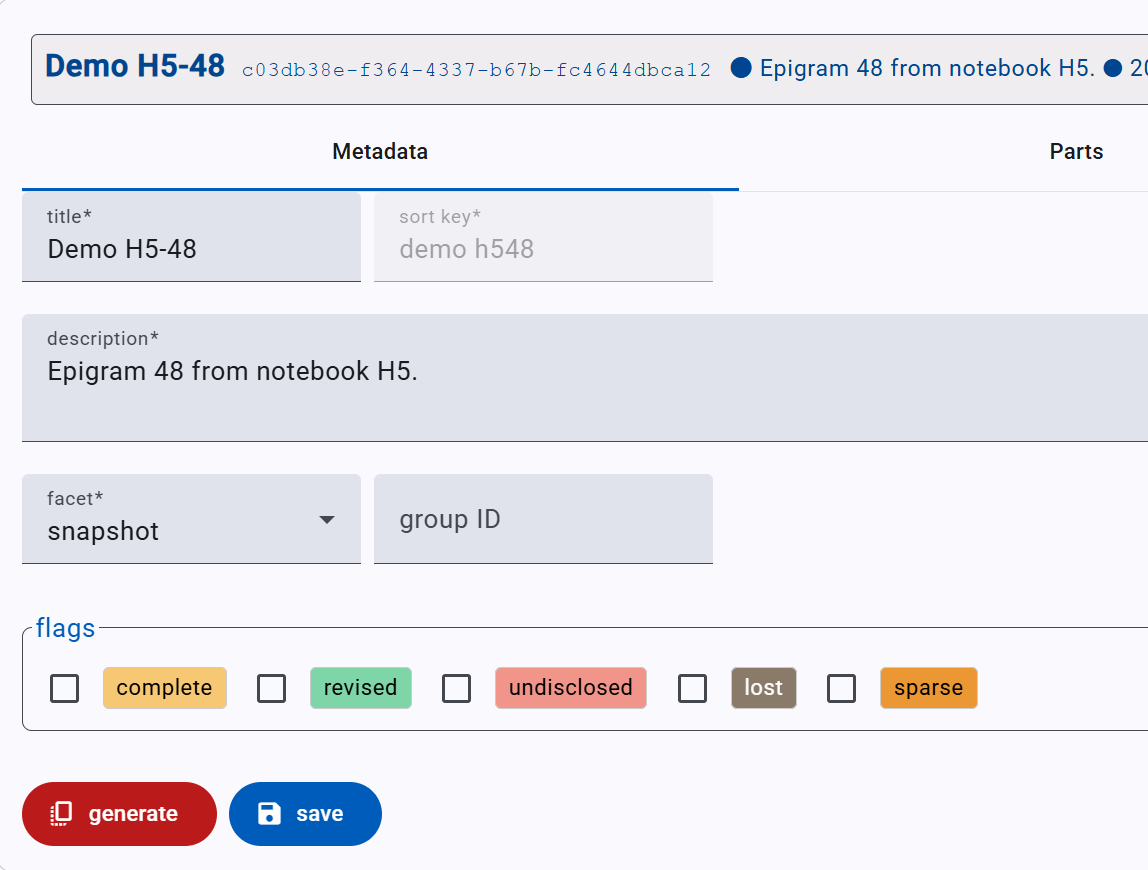
👉 The
generatebutton is used when you want to generate a batch of items at a time, using the current item as the template for them. So, this is rarely used unless you are going to create multiple items with the same structure at once.
- parts: the list of parts included in the item, semantically grouped. Among them, the most GVE specific part is the snapshot, implementing the corresponding model. When you create a new item, it contains no parts; its facet defines which parts you can add to it picking them from the top dropdown list. To add a part, just pick it from the list and click the plus button next to the dropdown. From this tab you can also edit or delete existing parts.